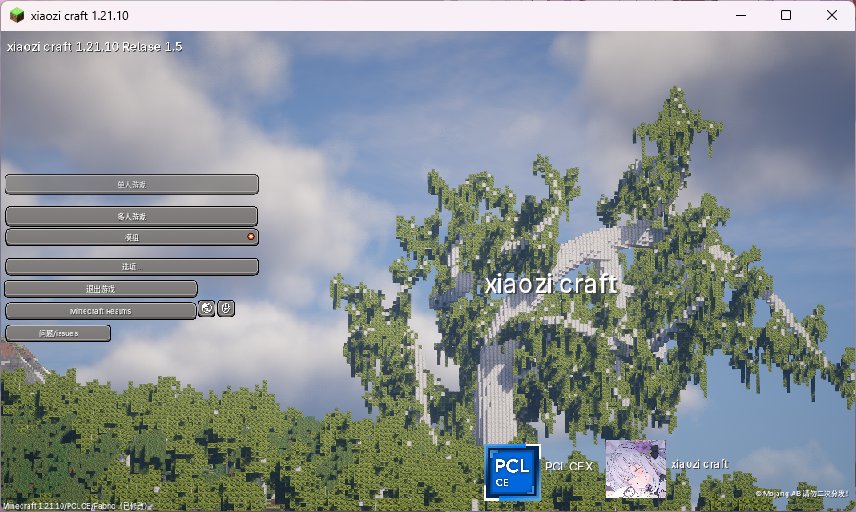
Client
Before you start playing Minecraft Java Edition, you need to install a Java runtime first.
There are two recommended download sources:
Oracle: https://www.oracle.com/java/technologies/java-jdk-downloads.html
BellSoft: https://bellsoft.com/products/jdk/
Choose either one, but make sure you download a 64-bit Java version.
At the moment, BellSoft Java is strongly recommended.
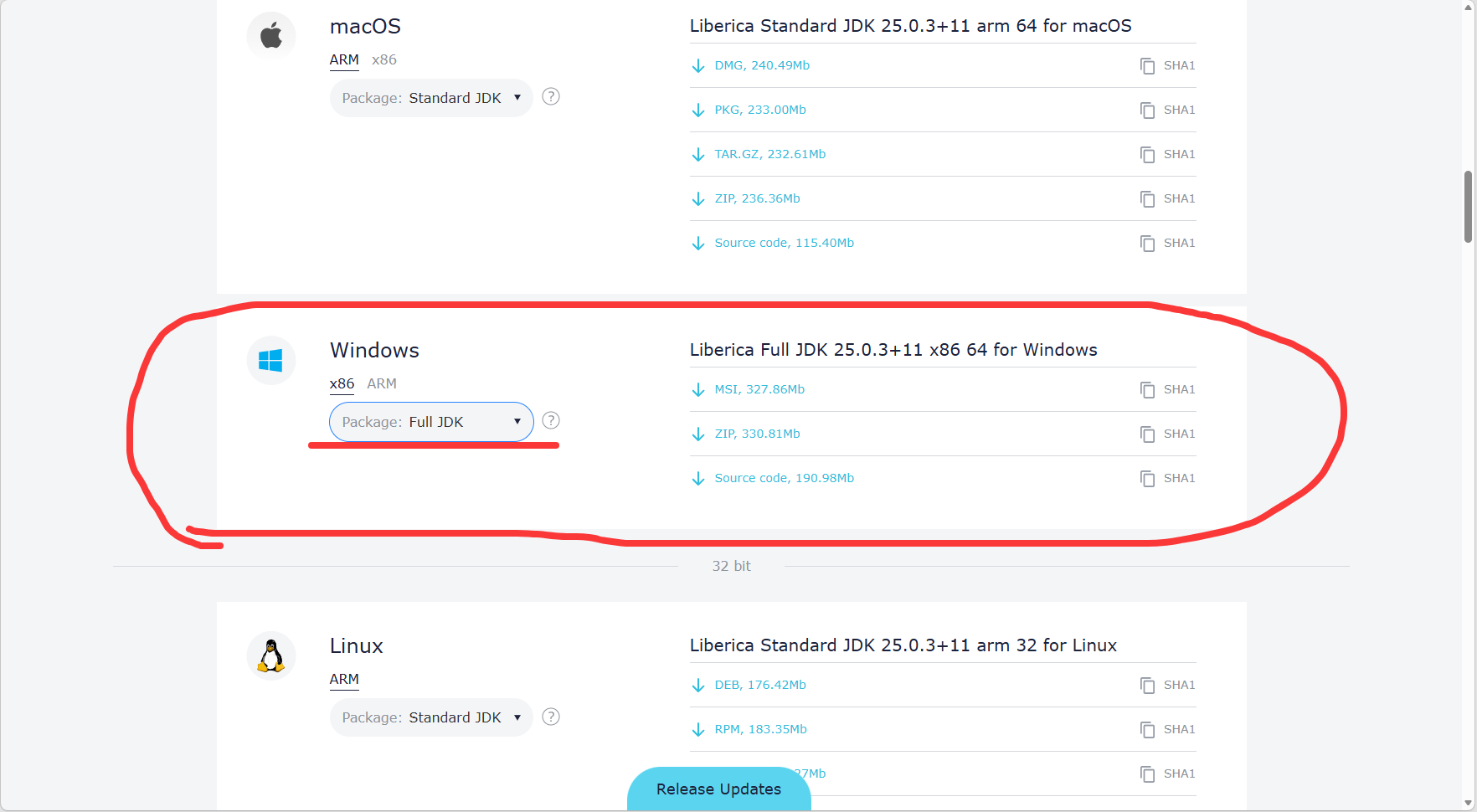
Remember to select the full edition.
Run this command to verify that Java was installed correctly:
java -versionYou should see output similar to this:
java version "17"
Java Runtime Environment (build 17+10)
OpenJDK Runtime Environment (build 17+10)
If you see something similar, Java was installed successfully.
2. After Java is ready, you still need a launcher. We recommend PCLCE.
PCLCE download page:
https://github.com/PCL-Community/PCL-CE/releases/latest
Choose the correct version for your operating system architecture.
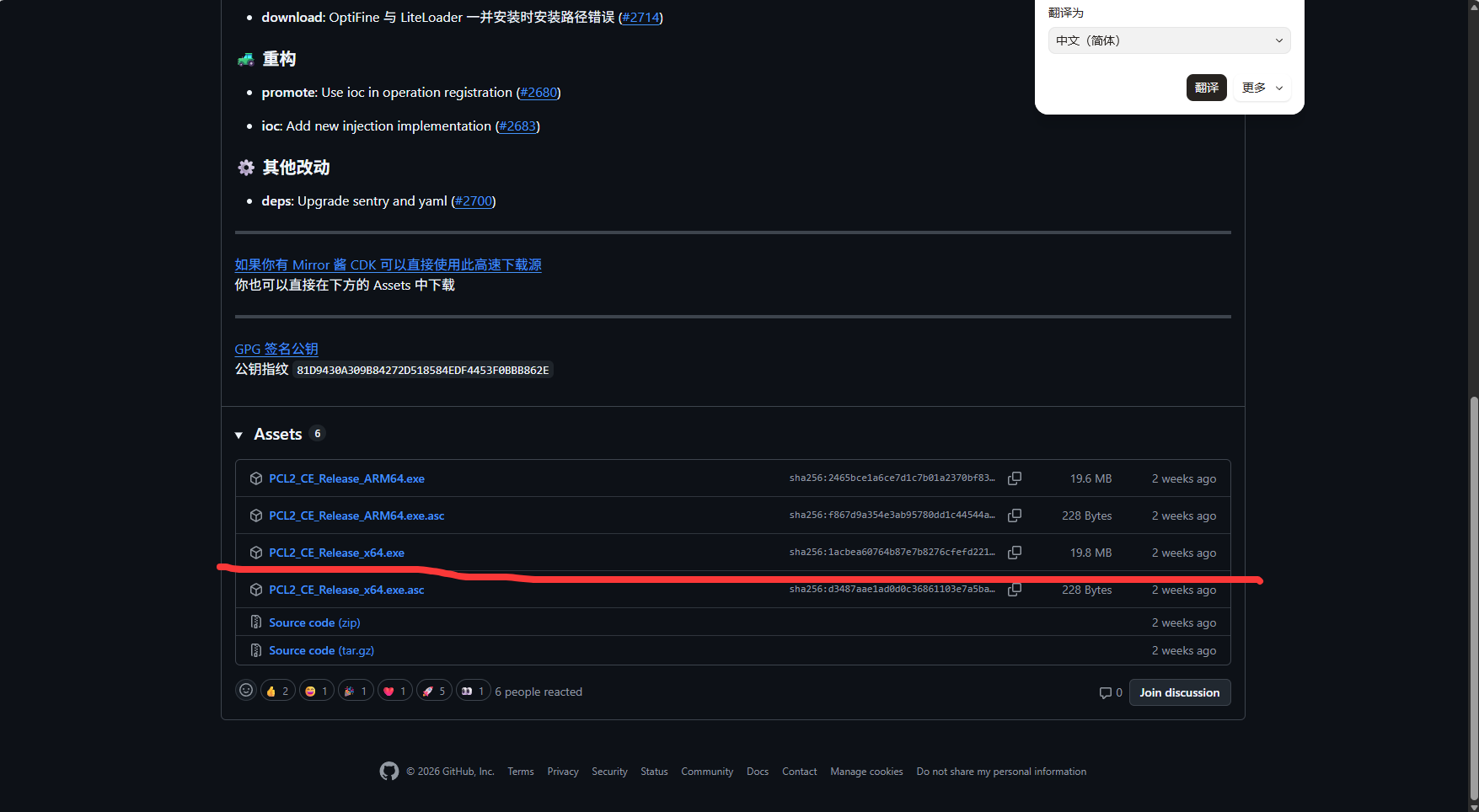
3. After downloading it, open PCLCE and click the option to install a modpack.
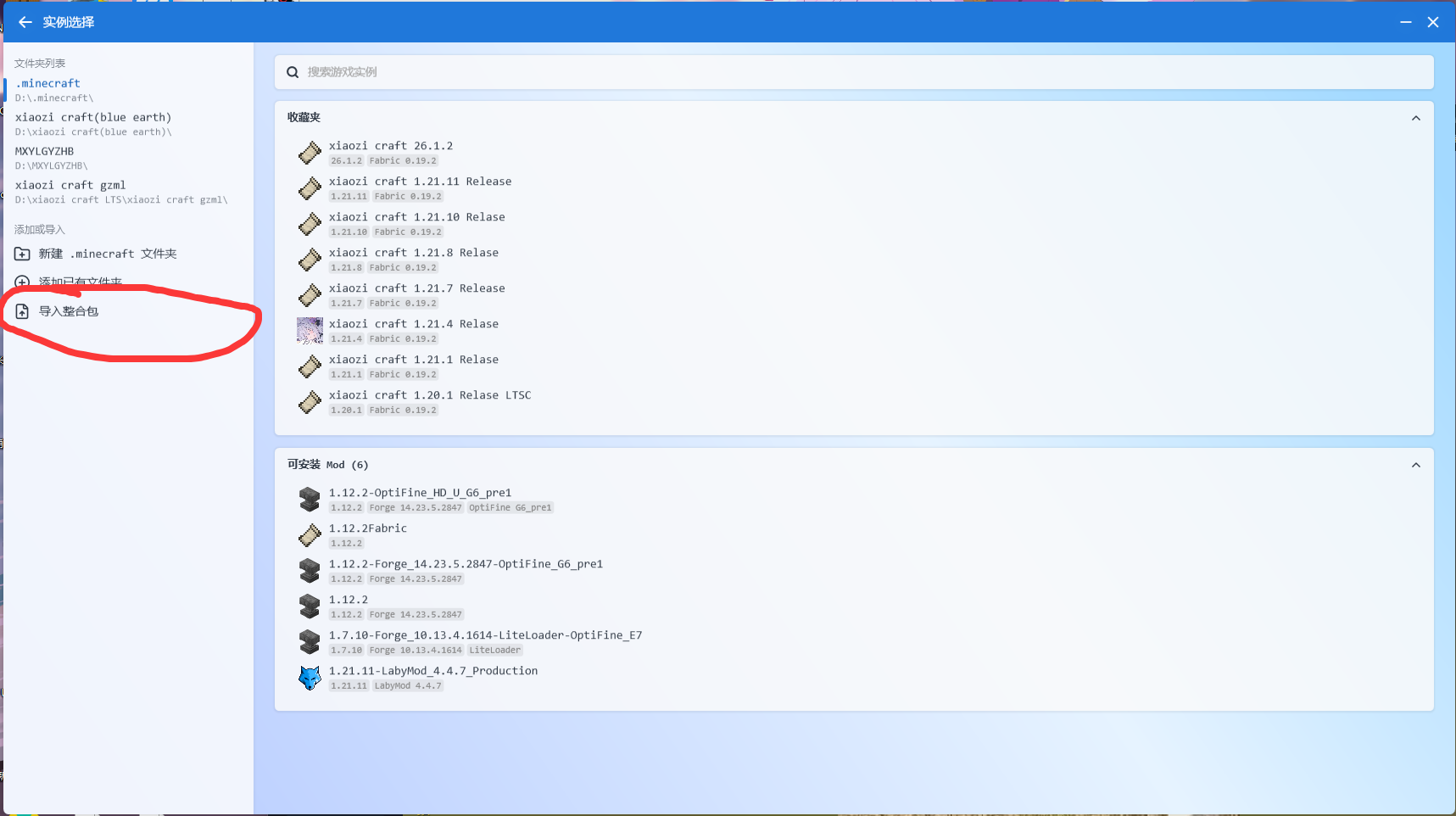
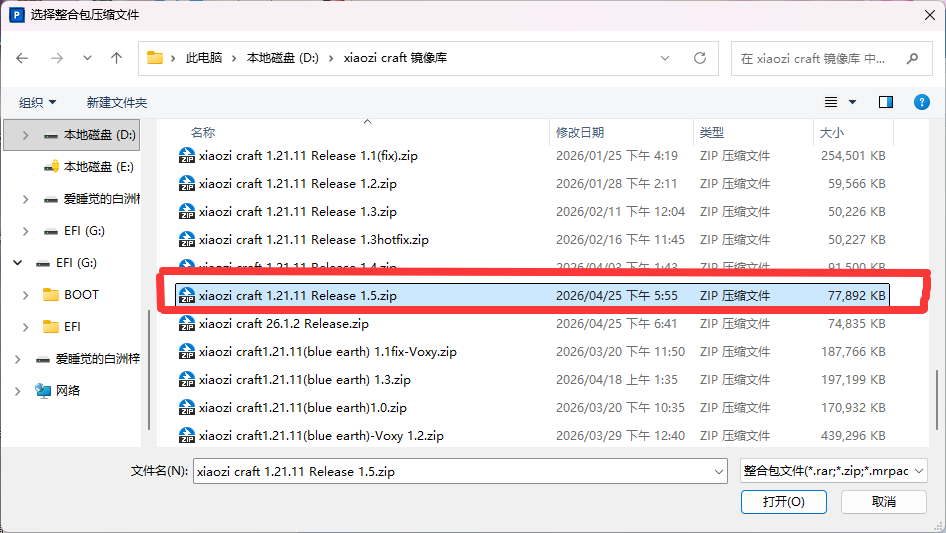
Select the downloaded xiaozi craft modpack archive. It is usually a .zip file.
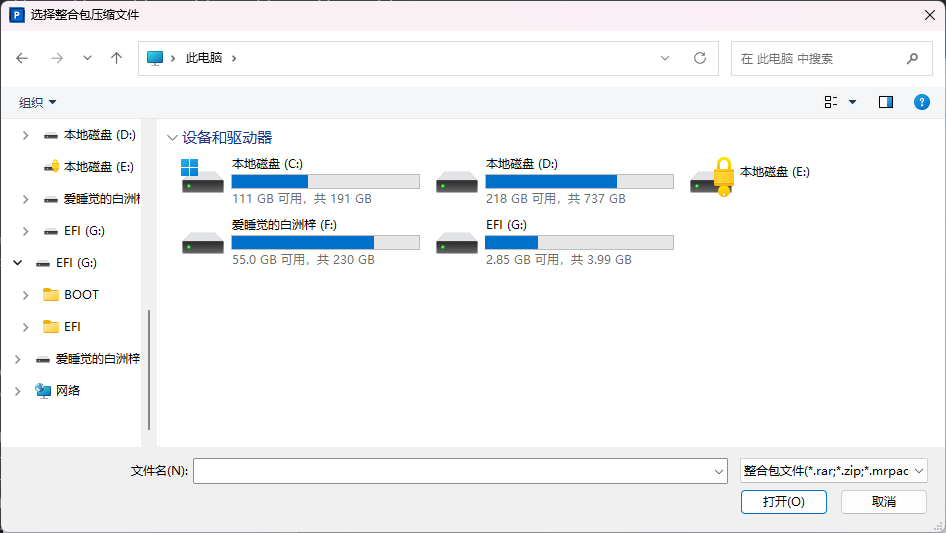
It usually looks like this. Select it and open it.
PCLCE will start installing the modpack automatically.
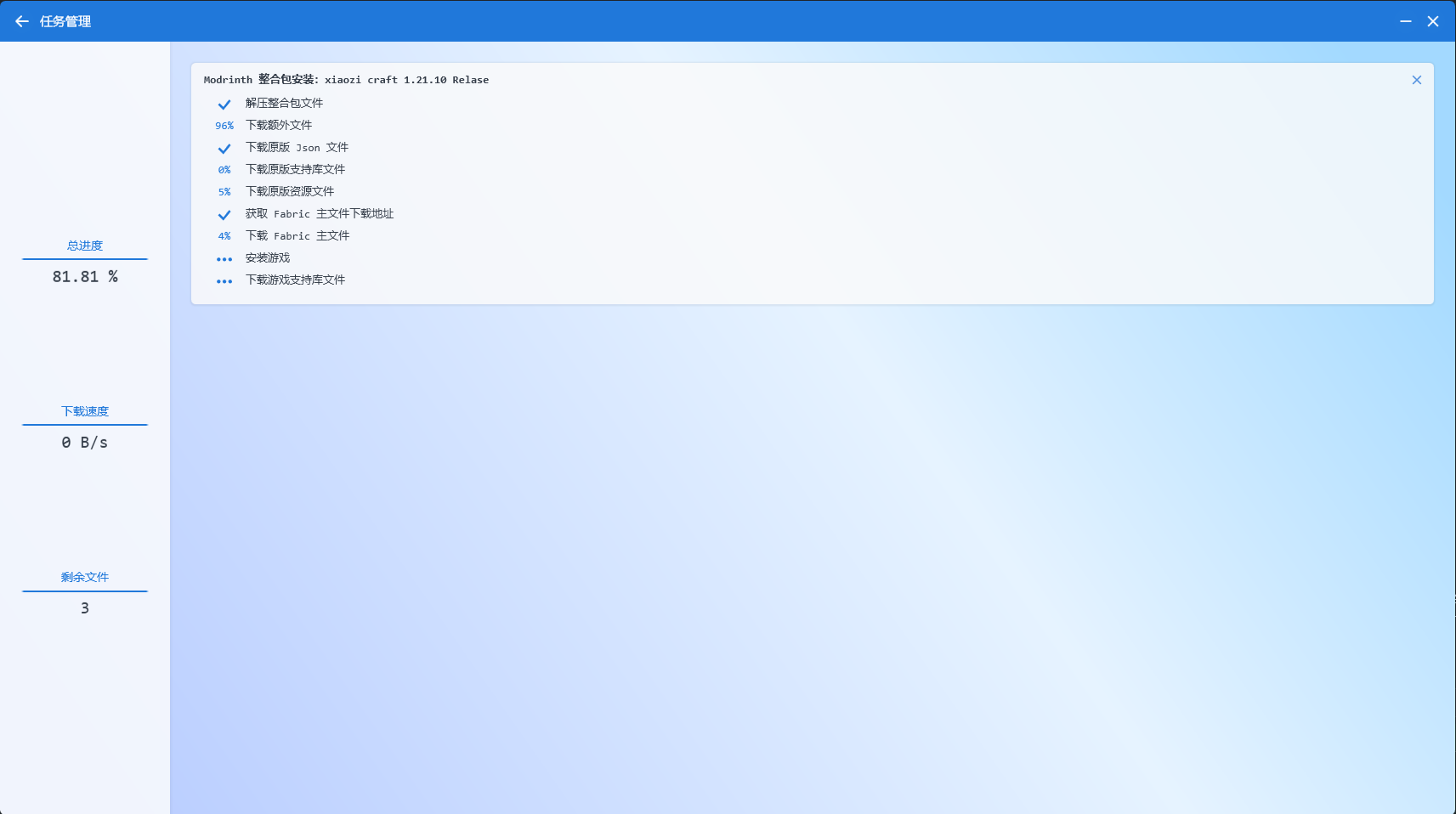
It will download the required files automatically.
WARNING
If the download stalls for a long time, cancel the task and repeat step 3.
Next, just launch the game by selecting the xiaozi craft modpack.
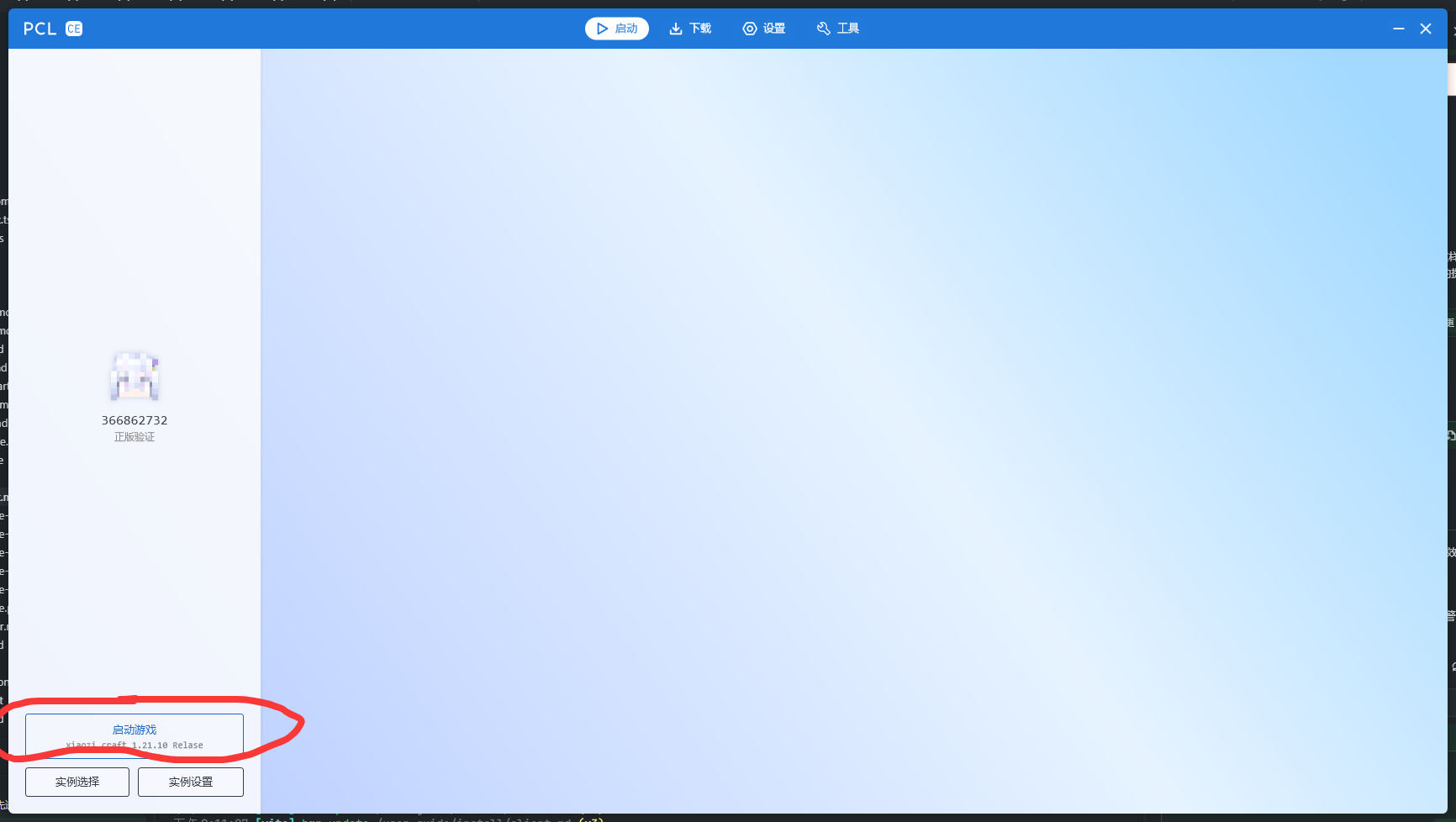
Looks good.